How to Set Up a Cash on Delivery Fee in Shopify
This guide will walk you through the steps to set up a Cash on Delivery (COD) fee for your Shopify store. You'll be able to add a custom charge for COD orders, making it easy to manage additional costs associated with this payment method. For a more visual guide, we've also included a video tutorial below to help you through the process.
Video Tutorial
For a step-by-step visual guide, watch our video tutorial below:
Step-by-Step Instructions
Step 1: Install the Advanced Cash on Delivery App
First, install the Advanced Cash on Delivery (COD) app from the Shopify App Store.
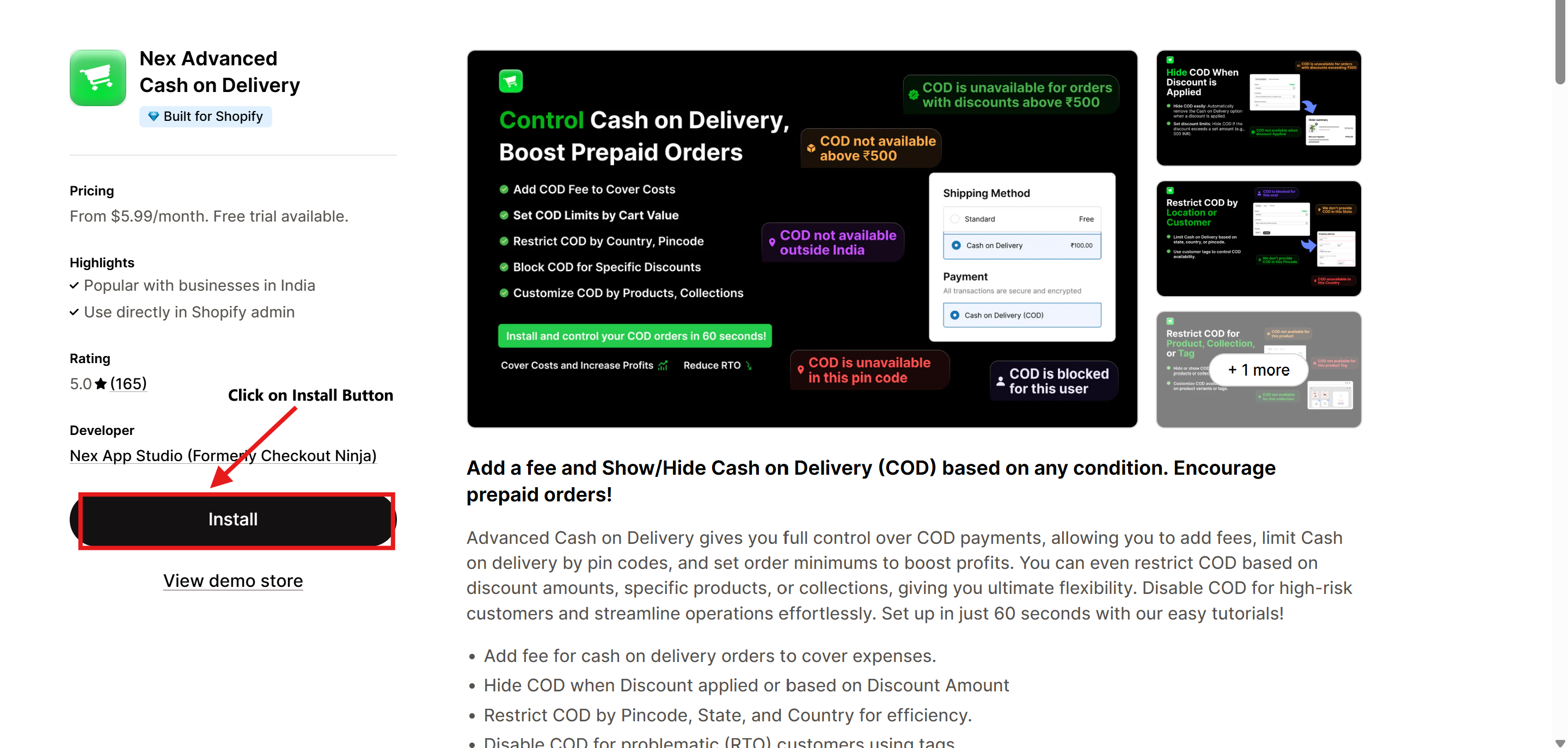
Step 2: Click on the Configure Button
After installing the app, go to the app's dashboard and click on the Configure button in the Add COD Fee section.
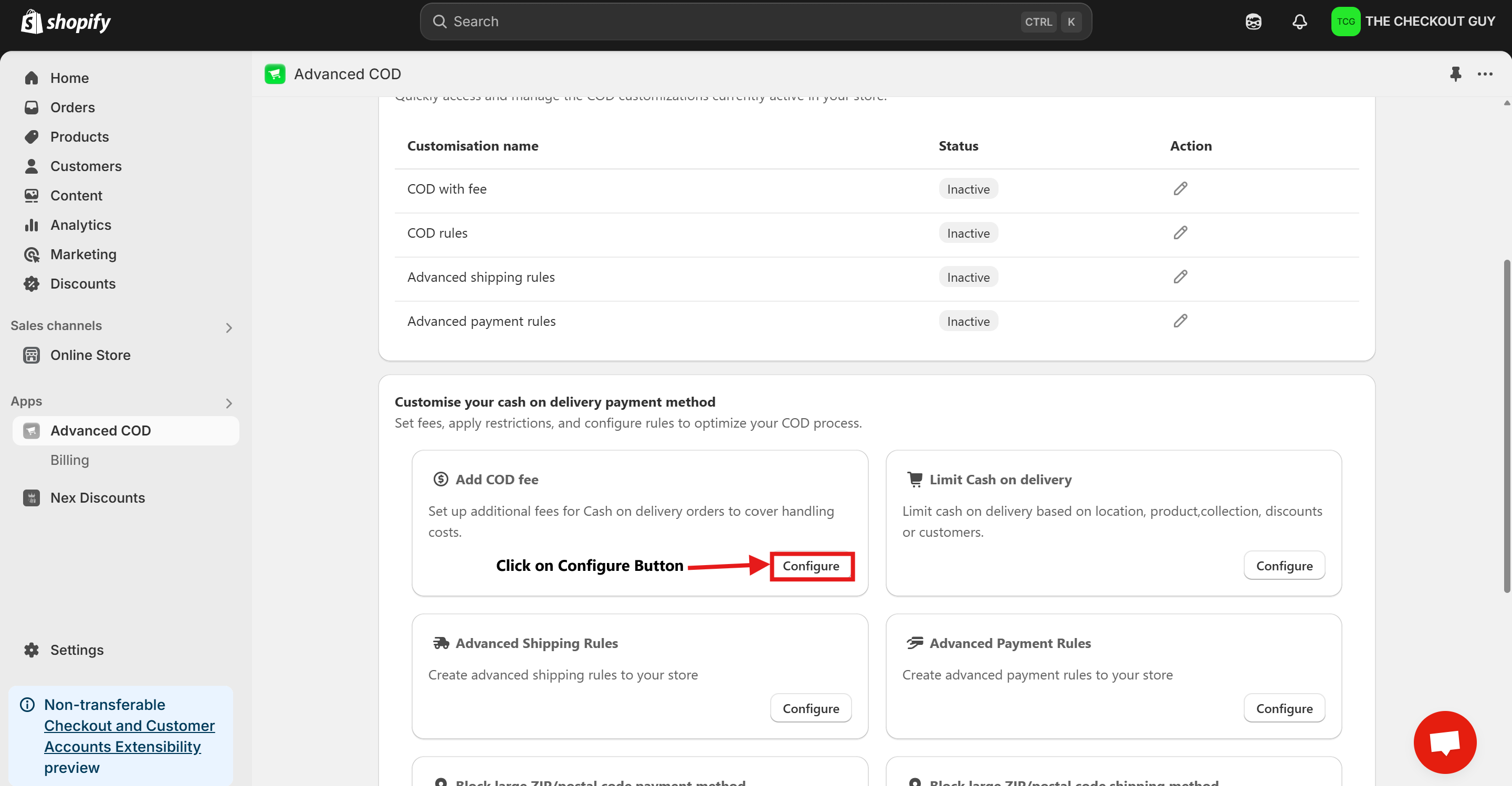
Step 3: Open Shipping Settings
Click on Open Shipping Settings to create a new fee under the Shipping and Delivery section in Shopify.
-6f7ee9672deae91d885d6969067c02d2.png)
Step 4: Click on General Shipping Rates
Within the Shipping Settings, click on General Shipping Rates to proceed with setting up the shipping fee.
-d295ece73a9b43e84f77c9ded4c74a36.png)
Step 5: Scroll to the Shipping Zones Section
Scroll down until you see the Shipping Zones section.
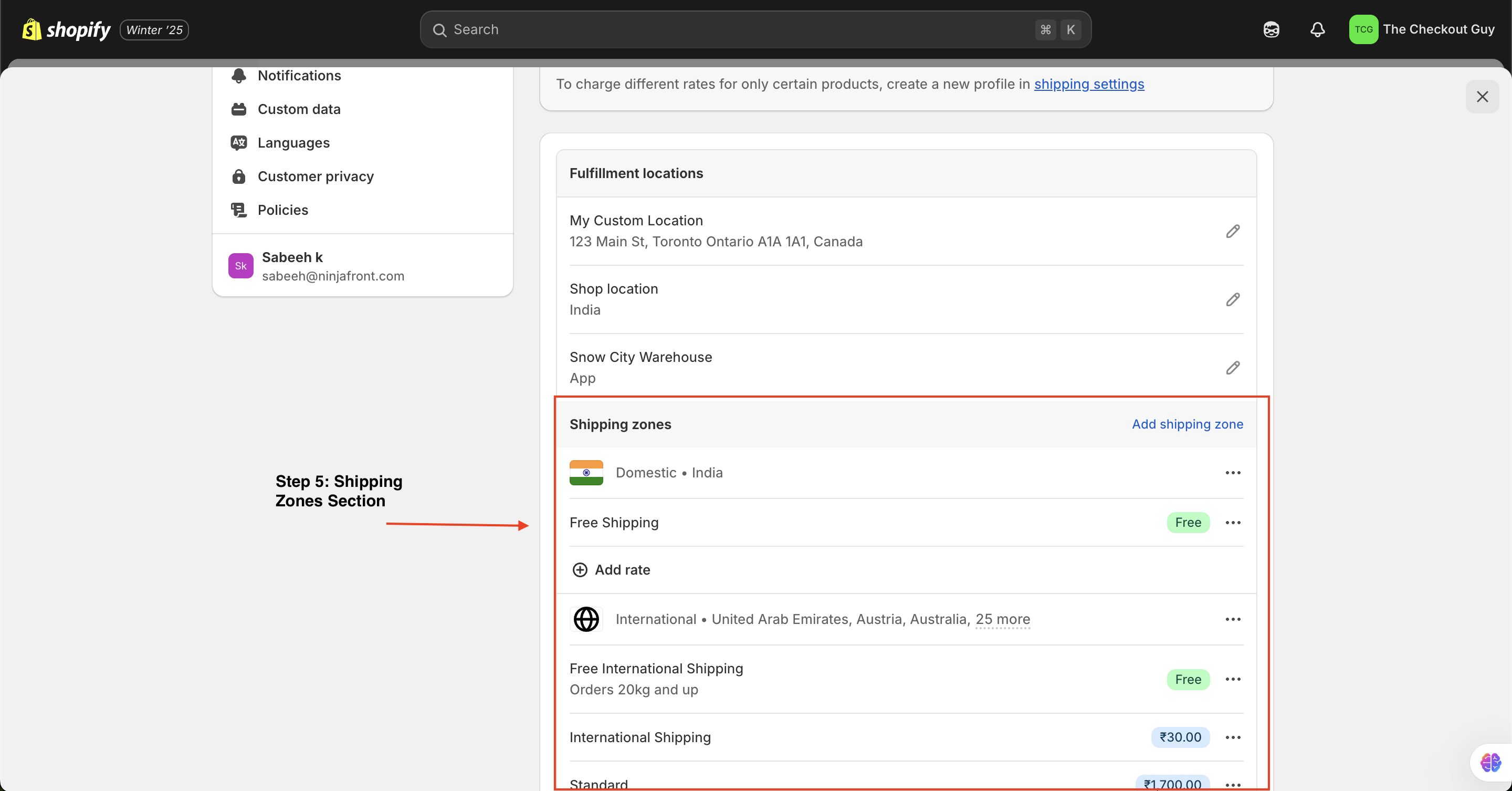
Step 6: Add Rates to Your Shipping Zone
Click on Add Rates for the shipping zone where you want to apply the COD fee.
-80c6bc6225b83caa339446521ad0d9db.png)
Step 7: Set the Custom Rate Name and Fee
Give the rate a custom name, such as Cash on Delivery Fee, and enter the fee amount, for example, ₹50. Then, click on Done.
-7ce602365e1f6df4b7c51a14c624b508.png)
Step 8: Save the Changes and Return to the App
Once you have added the rate, save your changes and return to the Advanced Cash on Delivery app.
-505c85b9708fbd98789942e93c1336a2.png)
Step 9: Enable the COD Fee and Select Your Shipping Charge
In the app, change the status to Enabled to activate the COD fee. Then, from the dropdown, select the shipping charge related to COD only.
-701c3a7029c357c7a88ad59047955258.png)
Step 10: Save the Changes
Finally, click on Save Changes to finalize the setup.
-ebebbe6333687387acc524a650305a0f.png)
Testing the COD Fee Setup
Step 1: Open Your Online Store
Go to your Shopify store's online storefront.
-5c96bf7b697e2d39bb8528fb4aa3272b.png)
Step 2: Add a Product to the Cart
Select a product, add it to your cart, and proceed to checkout.
-4913b437dce98ce4e1a808065e47ce58.png)
Step 3: Fill in Your Address
Enter a valid address to see the available shipping charges for your order.
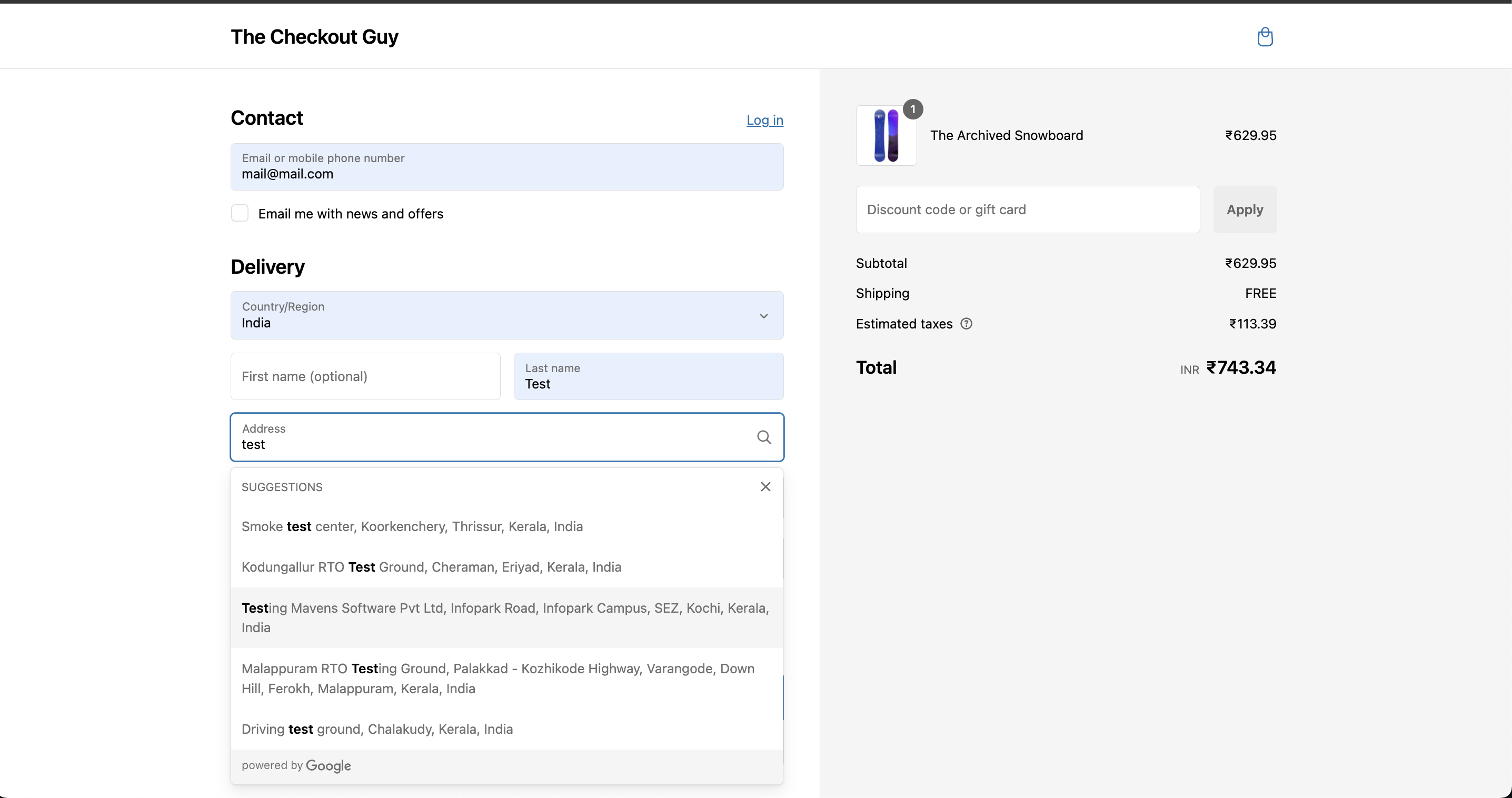
Step 4: Check the Payment Options for Prepaid
When you select Prepaid Charge, you should see only the Prepaid Payment Method.
-9a0ac56e86d7ee465c09e4c062e2bfdd.png)
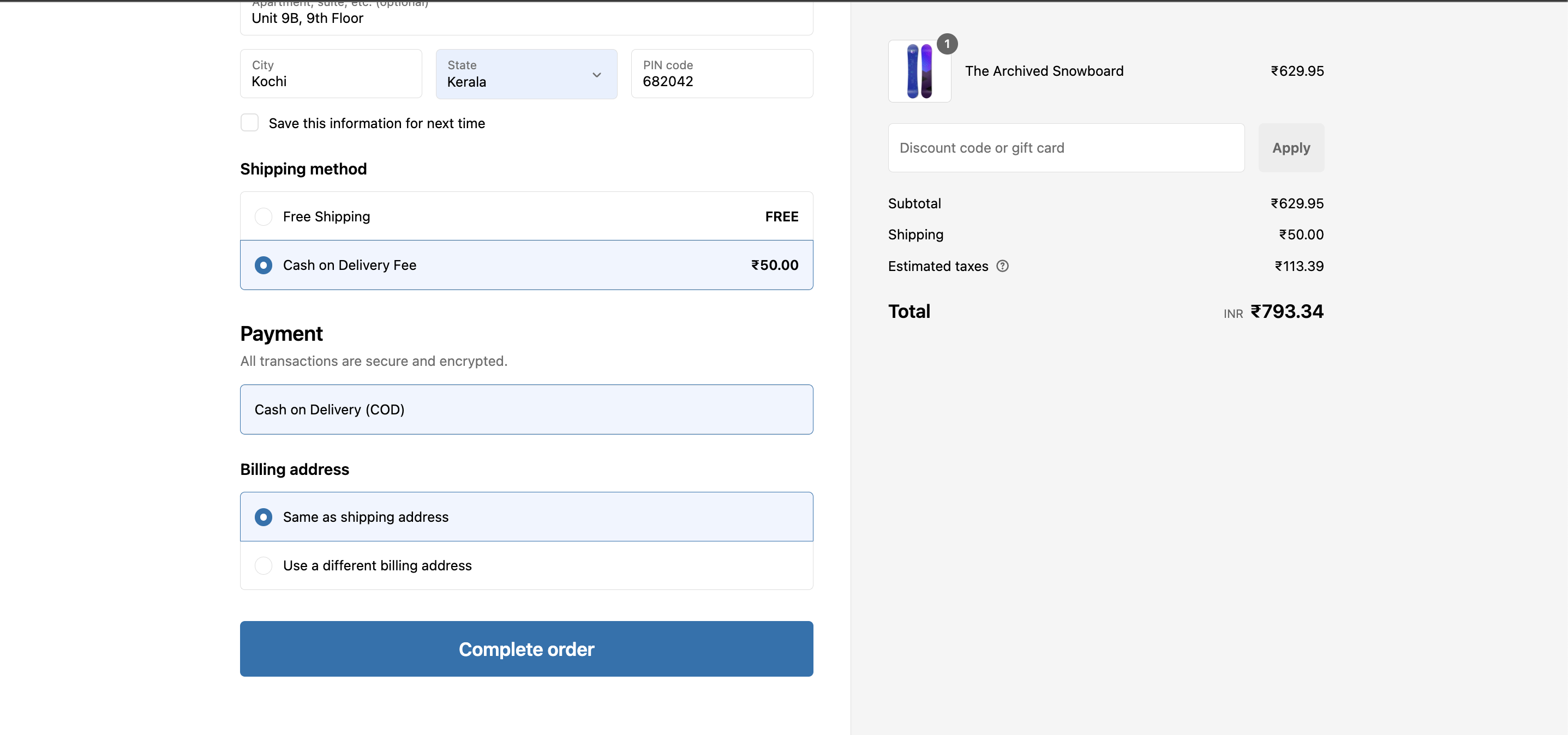
Step 5: Check the Payment Options for COD
When you select the Cash on Delivery Fee option, you will see the Cash on Delivery (COD) payment method, and the ₹50 COD fee will be added as part of the shipping fee in the total order amount.
Conclusion
You've successfully set up the Cash on Delivery (COD) fee in Shopify. Now, customers who choose the COD option will see the applicable COD fee clearly during checkout.