How to Show COD only for India
· 3 min read

This blog will help you set up the Cash on Delivery (COD) payment option so that it is only available to customers in India. Follow these step-by-step instructions to restrict COD by location and ensure a tailored shopping experience for Indian customers.
Step-by-Step Instructions
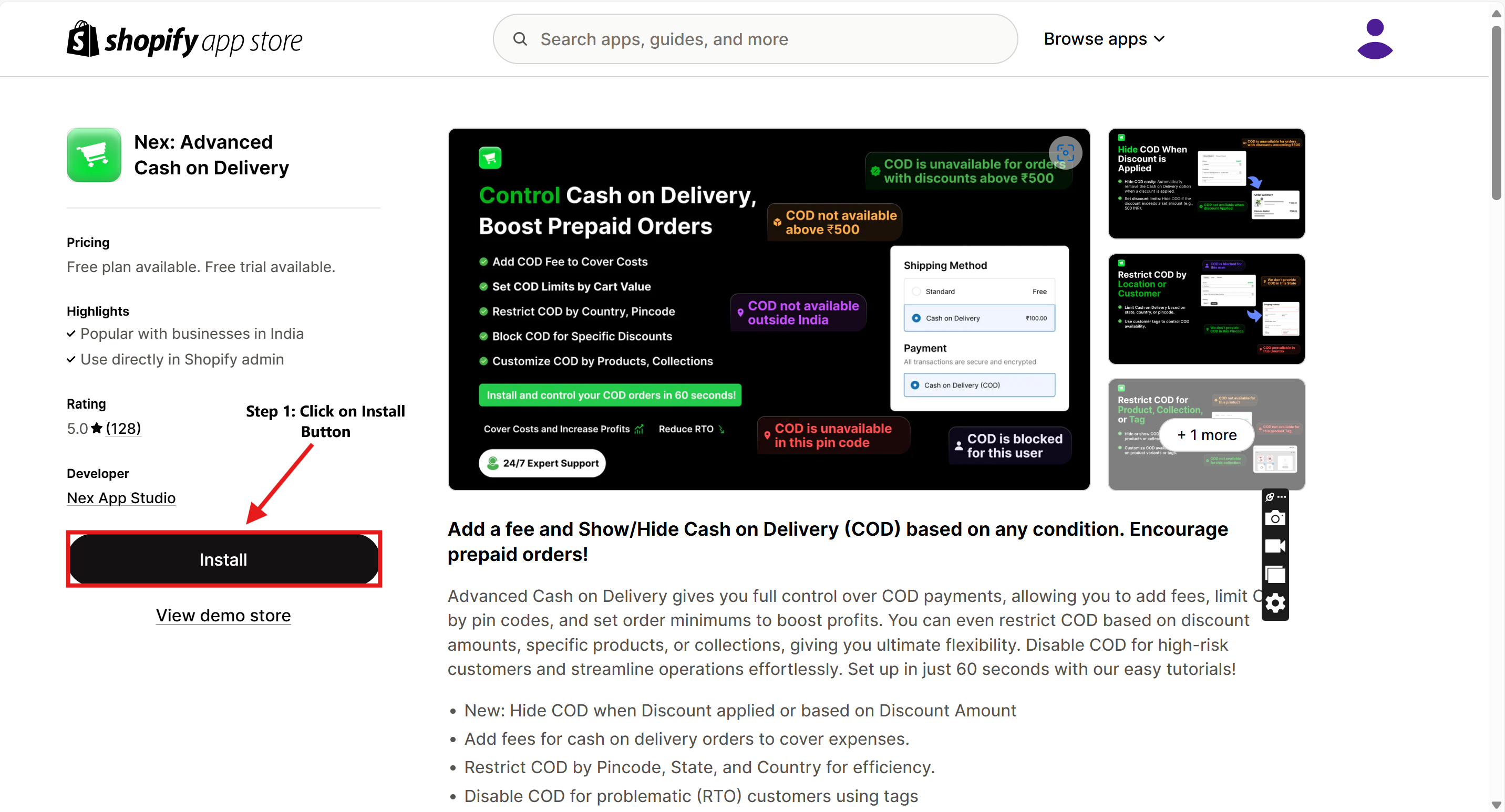
Step 1: Install the Advanced Cash on Delivery App
- Go to the Shopify App Store in your Shopify admin dashboard.
- Search for Advanced Cash on Delivery.
- Click on the Install App button to add it to your store.
Step 2: Open the Advanced Cash on Delivery App
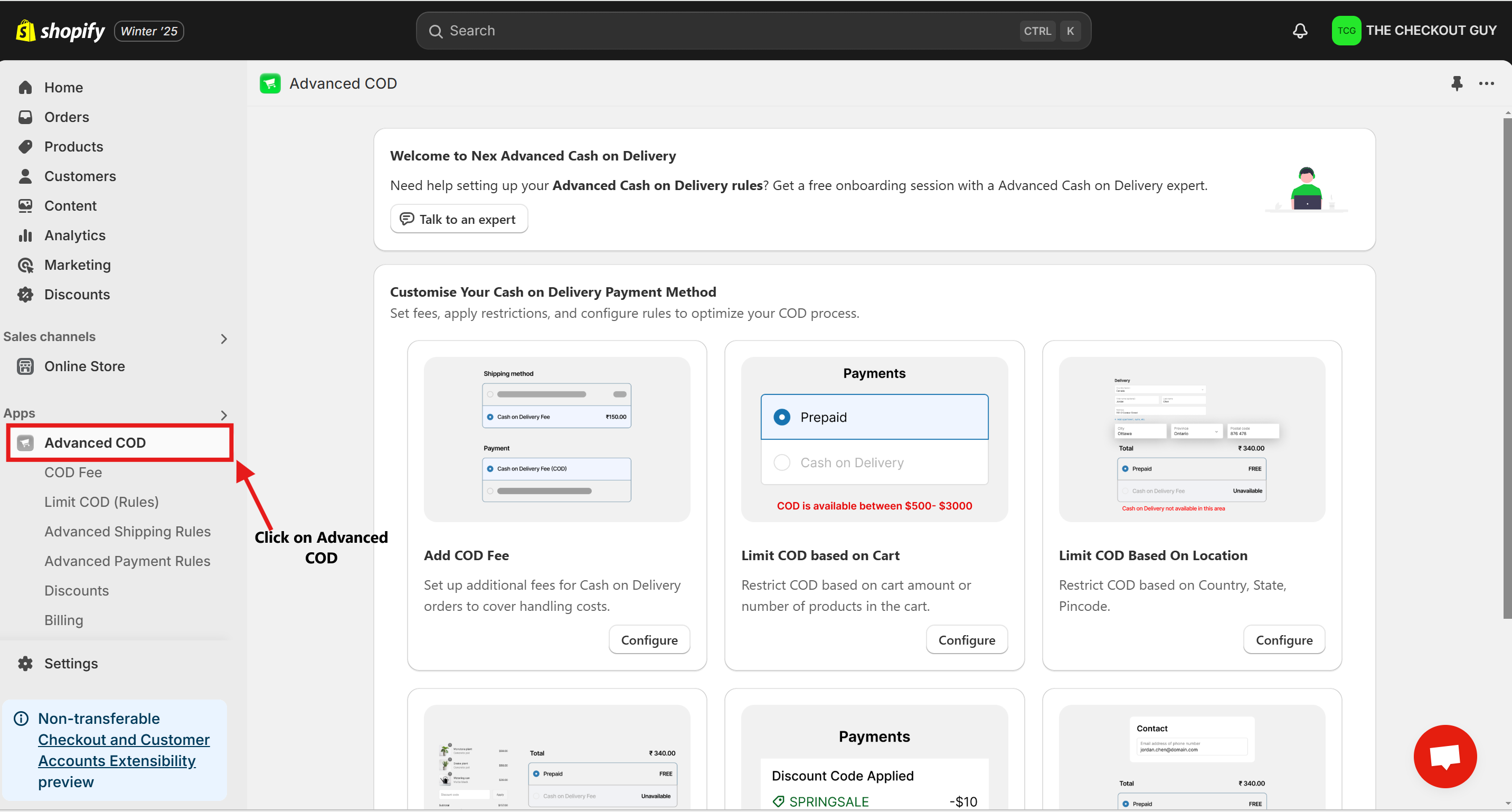
- Once the app is installed, go to Apps in your Shopify admin dashboard.
- Select Advanced Cash on Delivery to open the app.
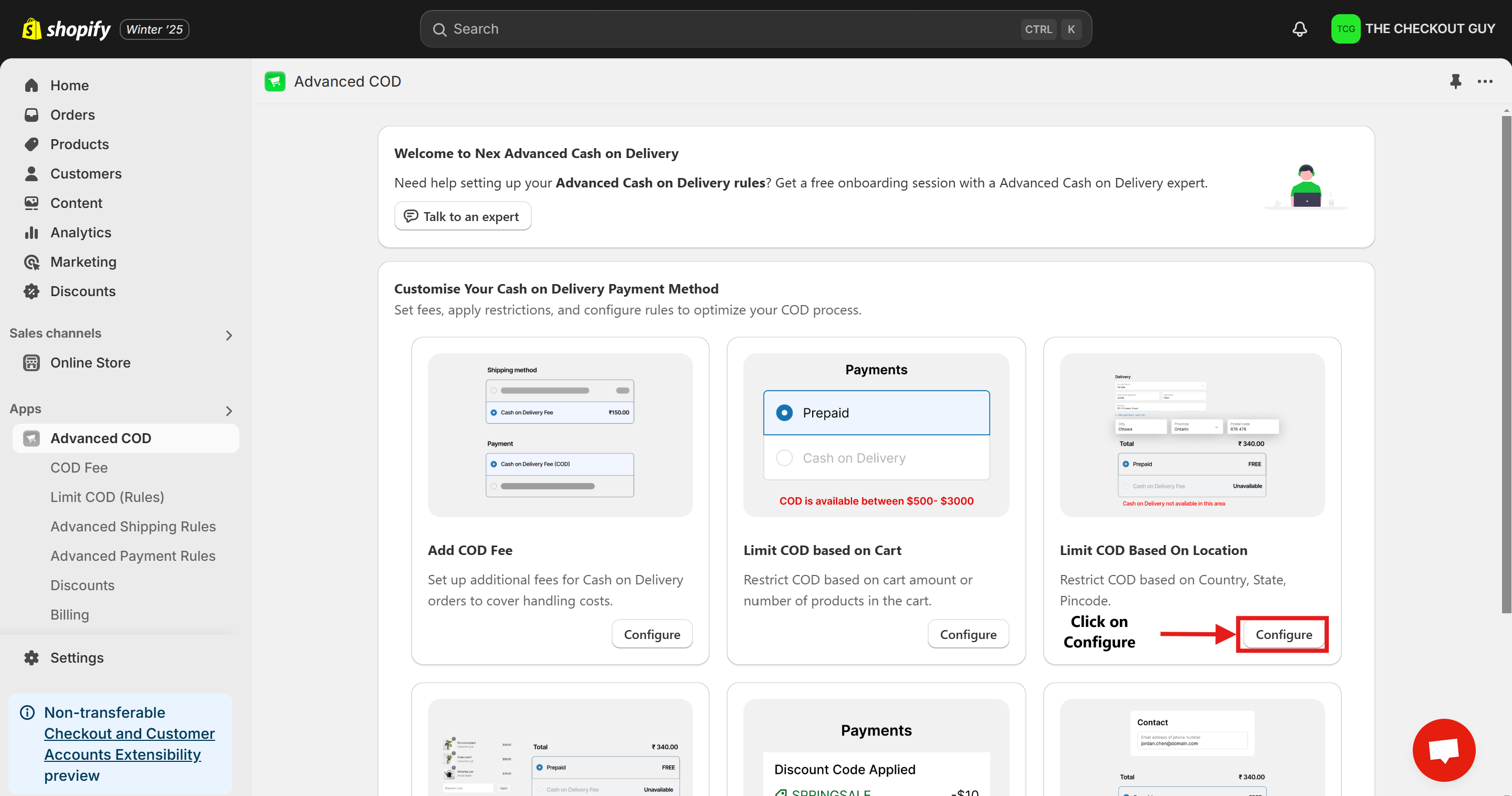
Step 3: Configure the App to Limit COD Based on Location
- In the app, locate the Limit COD Based on Location option.
- Click on the Configure button.
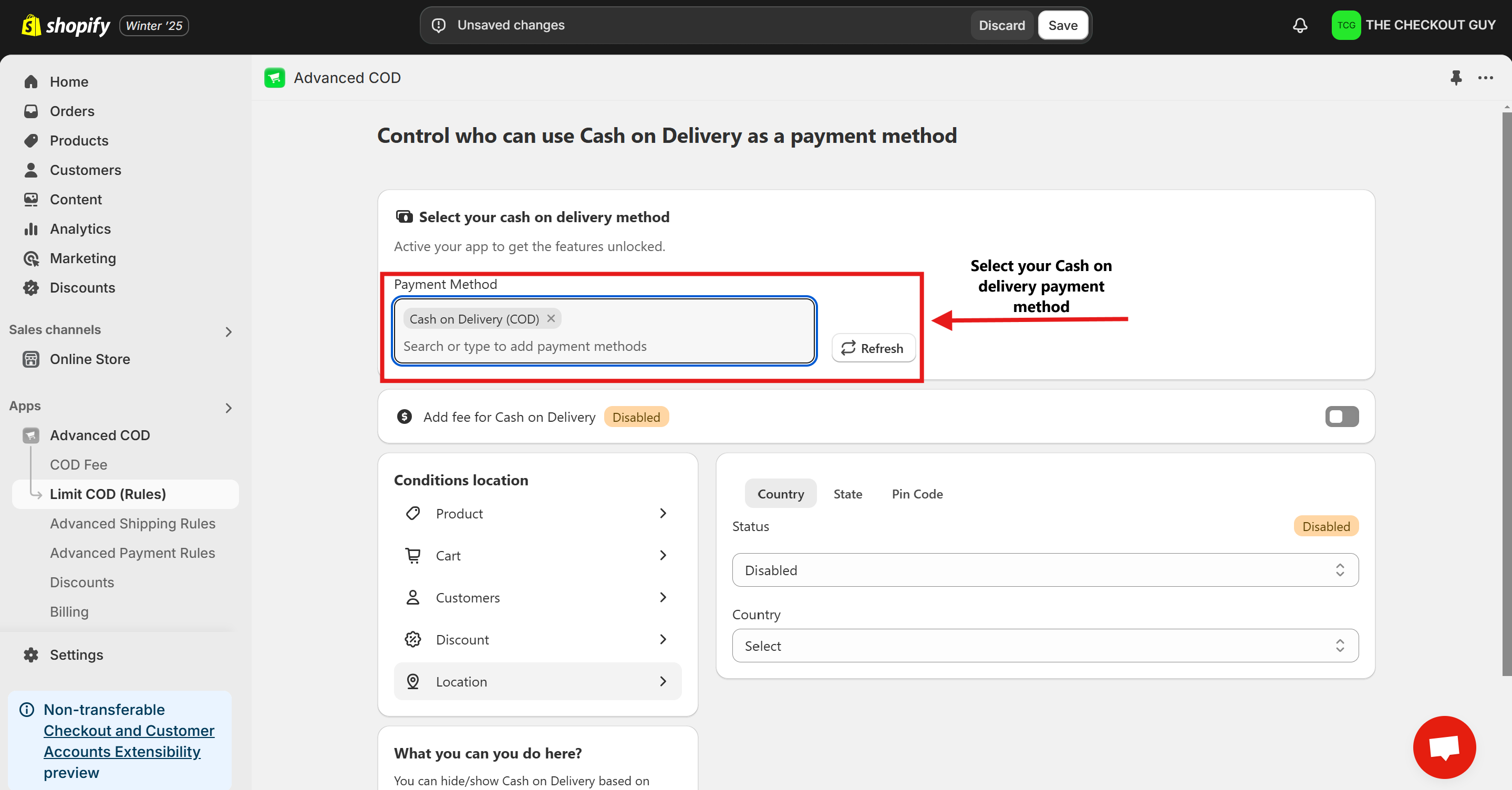
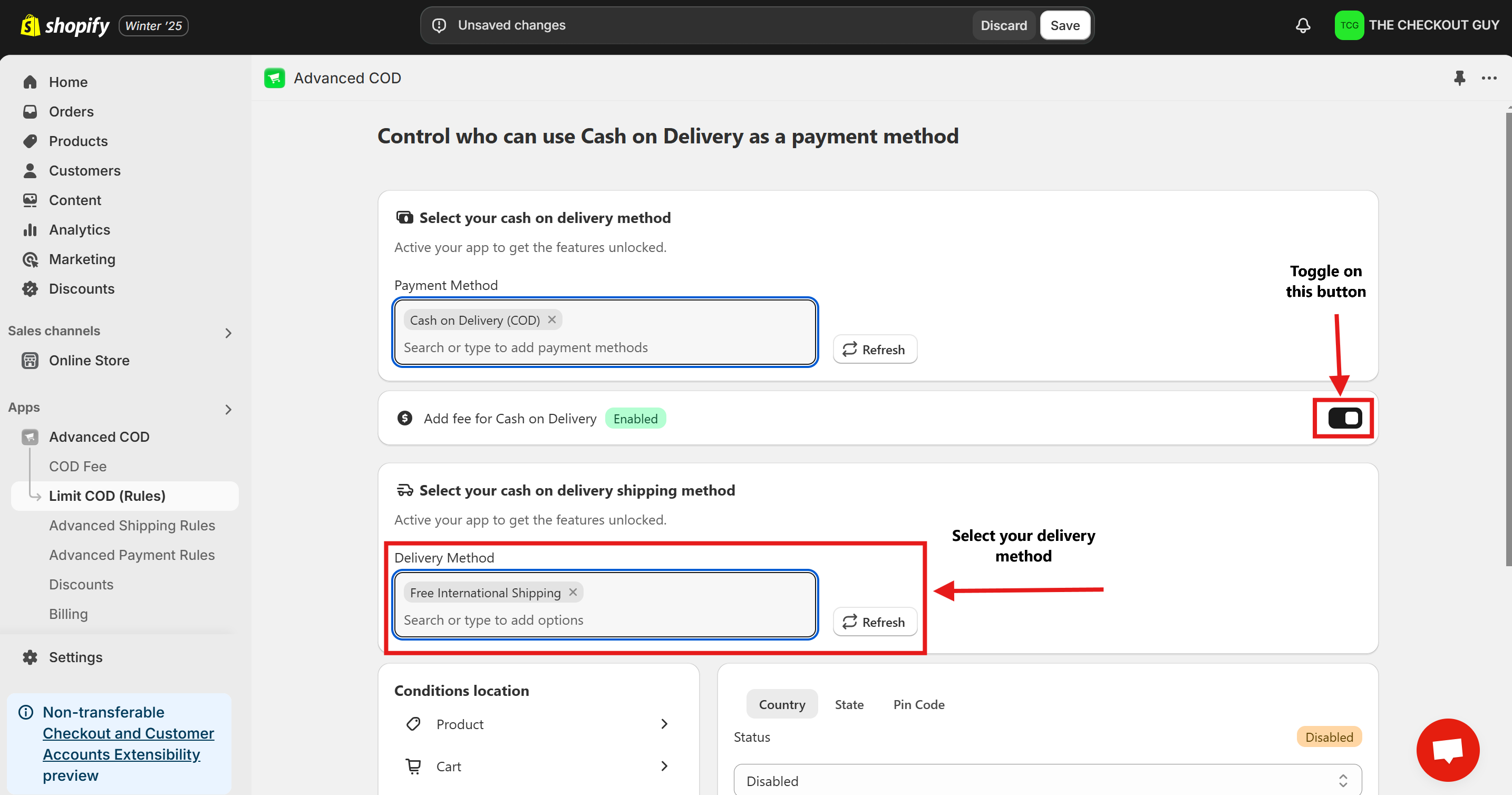
Step 4: Select Your COD Payment Method
- From the Payment Method dropdown menu, select your Cash on Delivery option.
Step 5: Add Additional Fees for COD (Optional)
- If you want to charge an additional fee for COD orders, toggle on the Add Fee for COD option.
- Choose the delivery method associated with COD orders.
Step 6: Enable the Feature
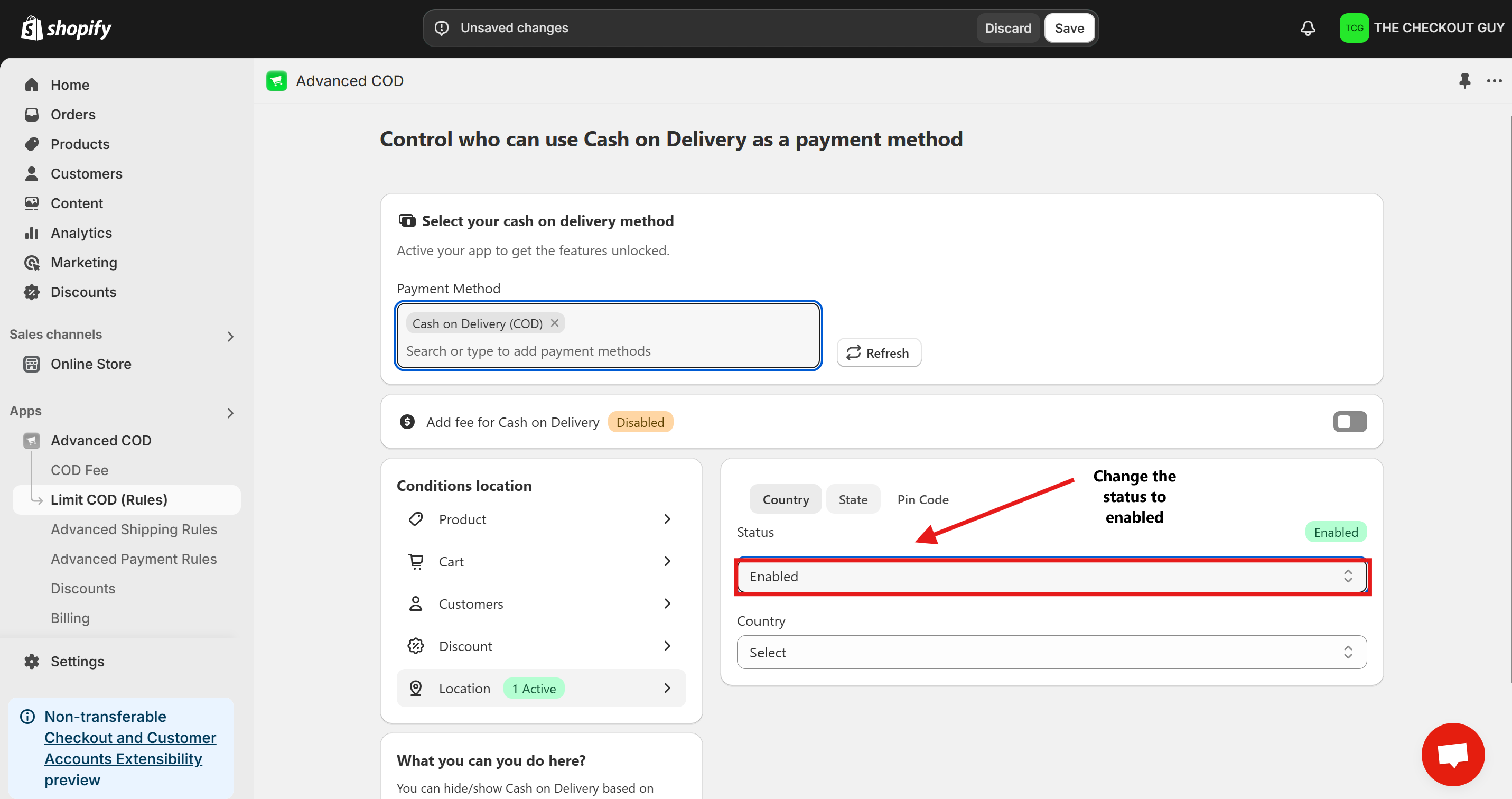
- At the top of the configuration page, find the Status toggle.
- Switch the status to Enabled.
Step 7: Restrict COD to India
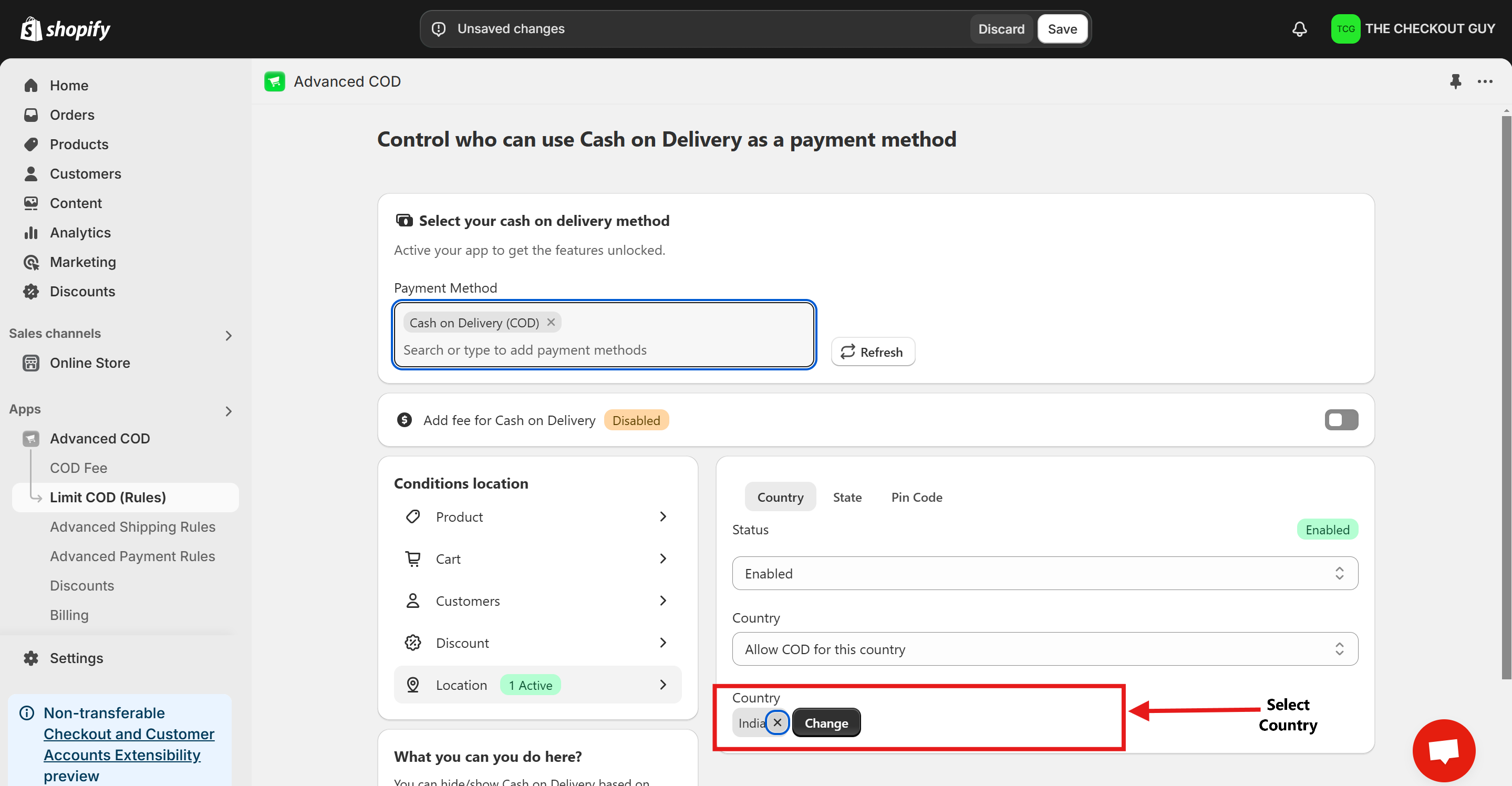
- From the Country dropdown menu, select India.

- Ensure no other countries are selected to restrict COD to India exclusively.
Step 8: Save Your Changes
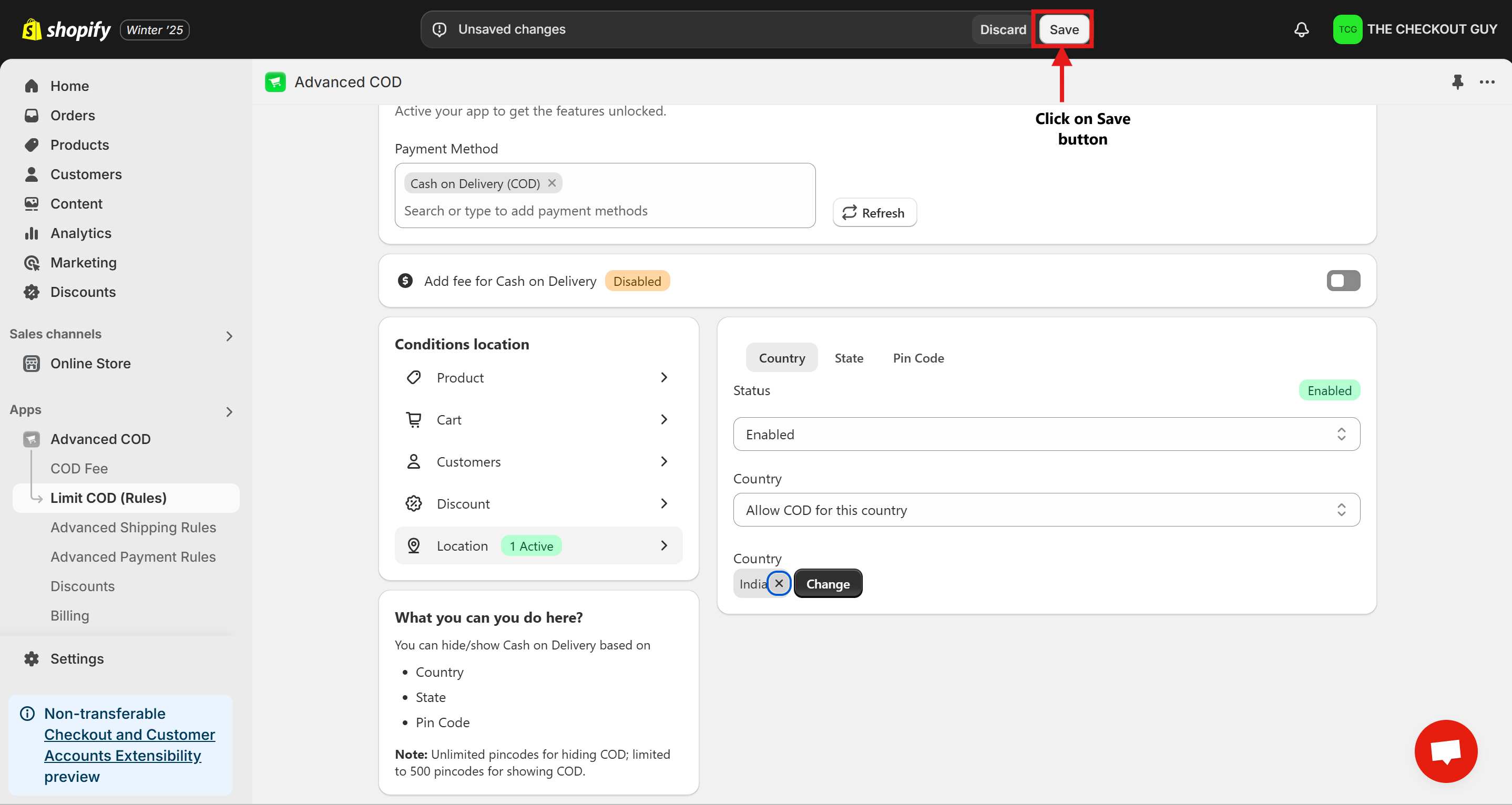
- After selecting India, click on the Save Changes button to apply your configuration.
Testing the Setup
Step 1: Open Your Online Store
- Navigate to your Shopify store’s online storefront.
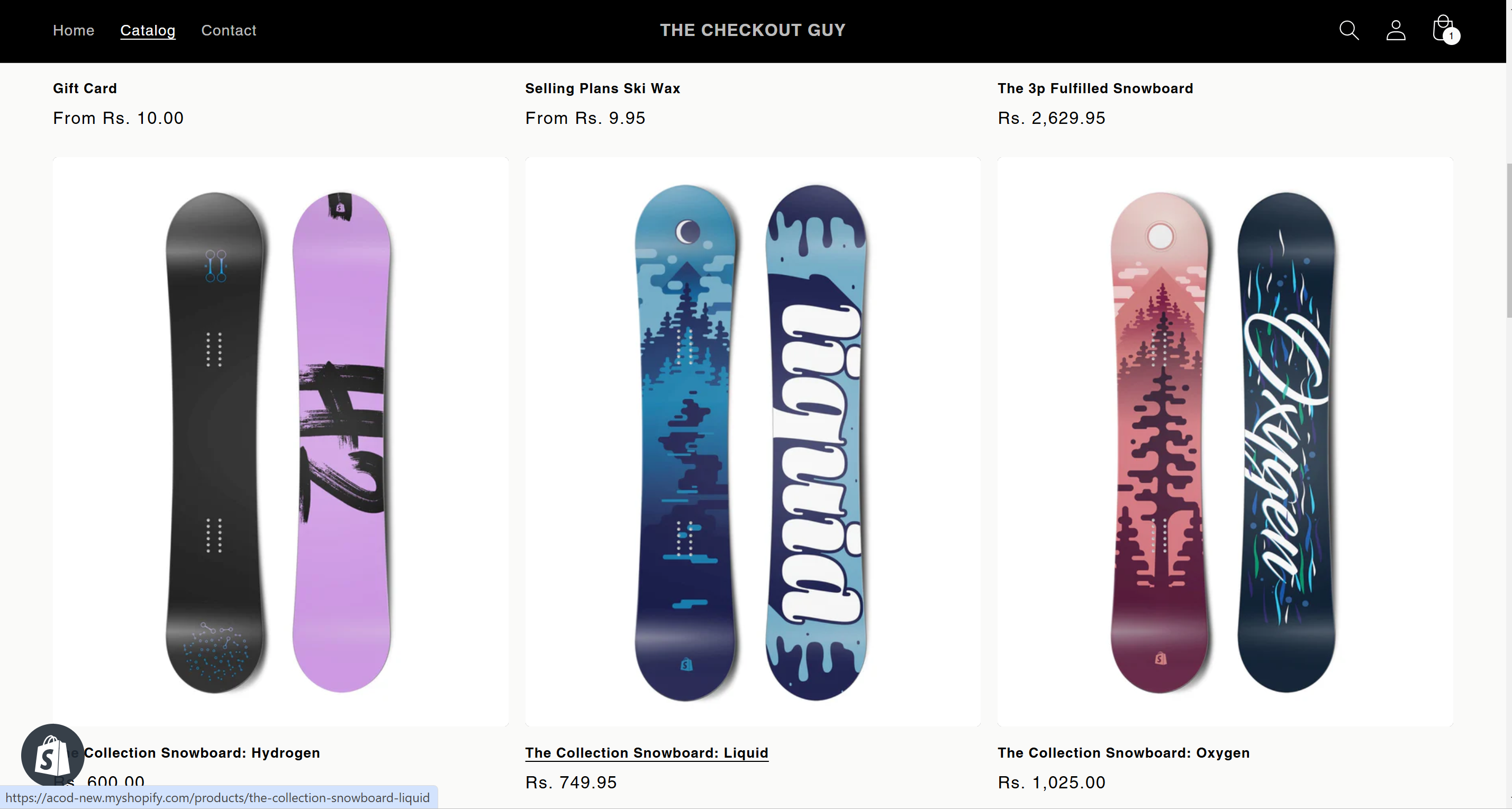
Step 2: Add a Product to the Cart
- Select any product and add it to your cart.
- Proceed to checkout.
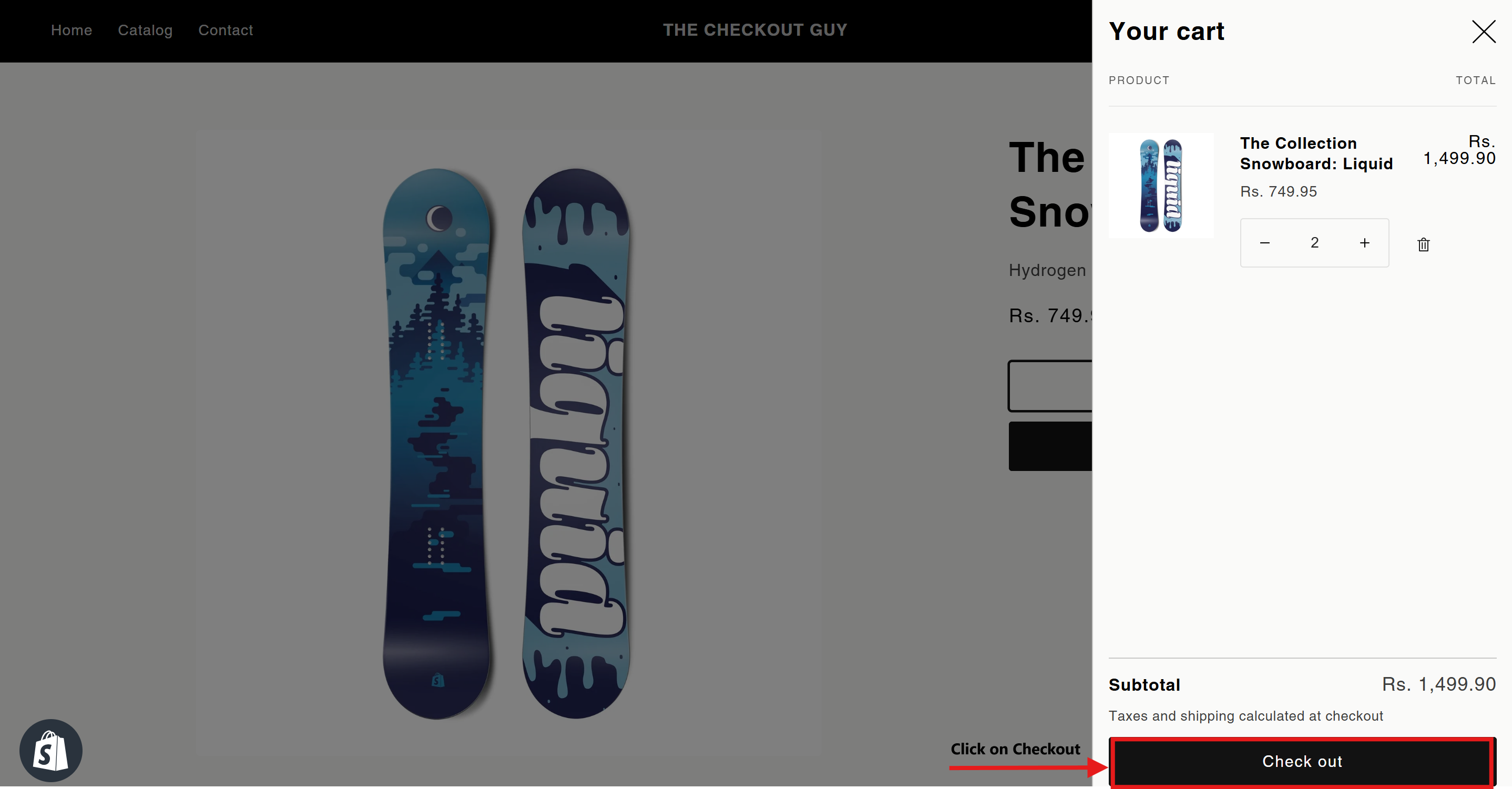
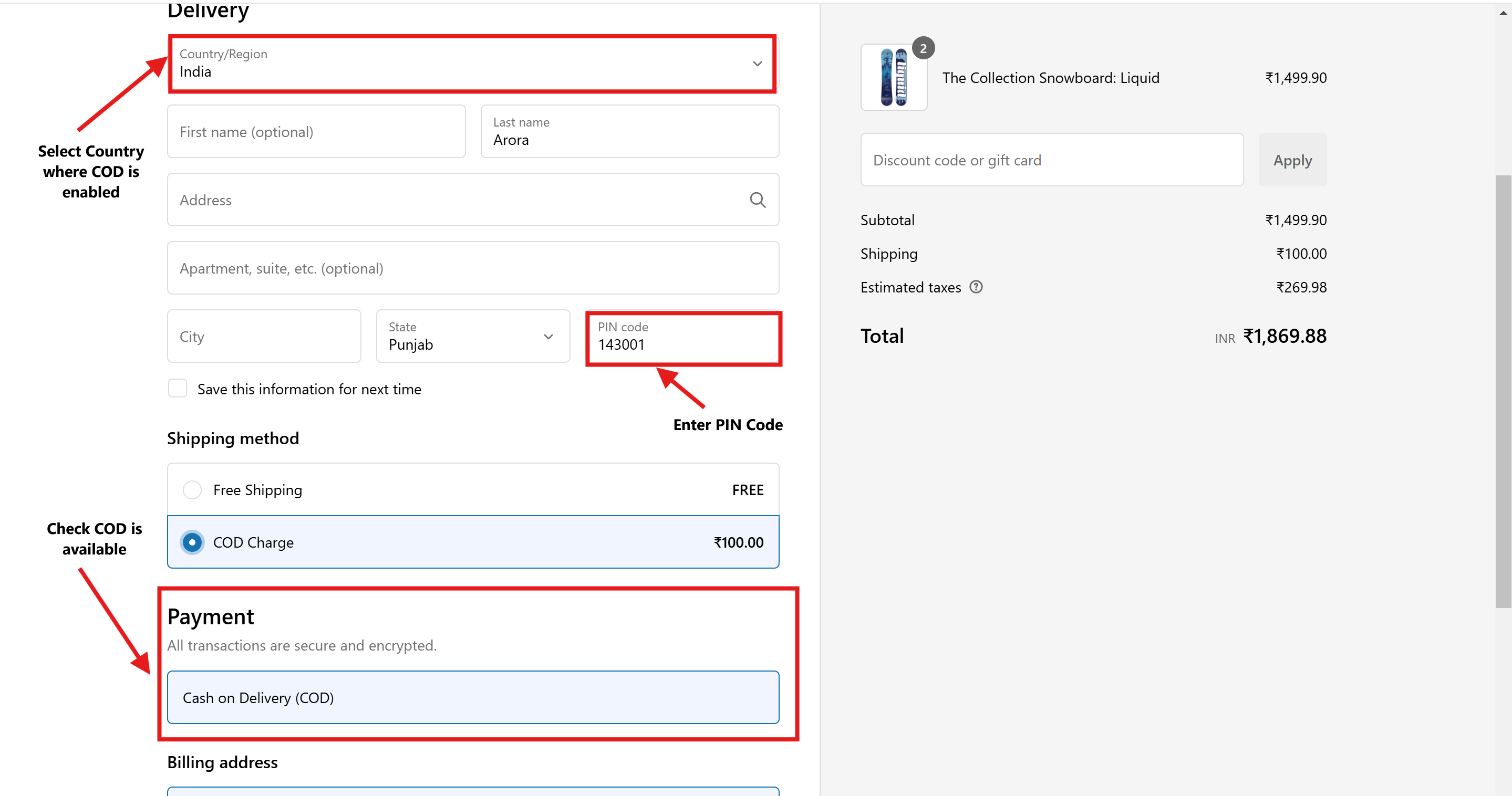
Step 3: Test an Address in India
- During checkout, enter an address in India.
- Verify that the Cash on Delivery payment option appears.
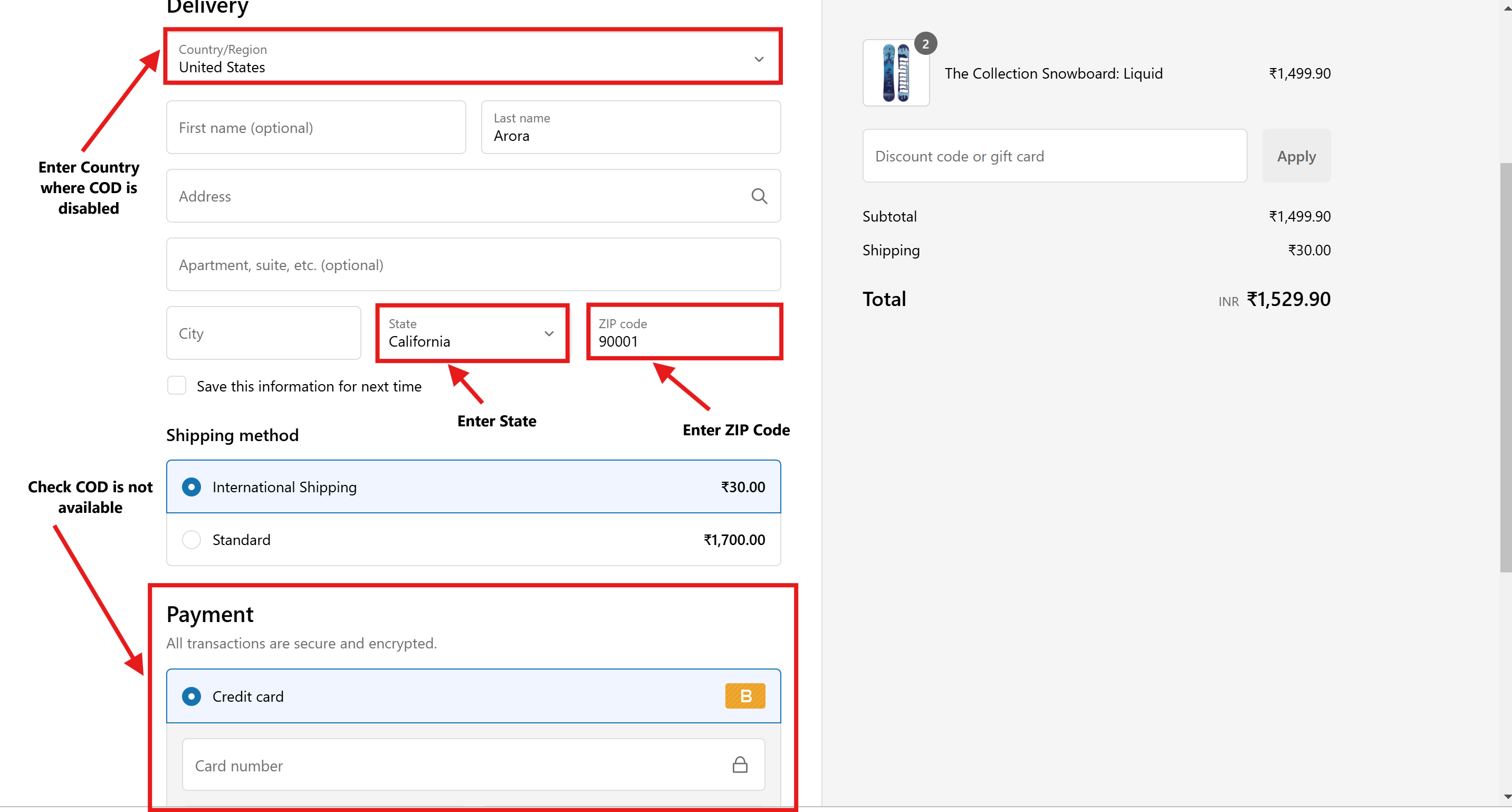
Step 4: Test an Address Outside India
- Repeat the checkout process using an address from a country other than India.
- Confirm that the Cash on Delivery payment option is not available.
Conclusion
You’ve successfully configured your Shopify store to show the Cash on Delivery (COD) payment option only for customers in India. This ensures a targeted shopping experience and helps you manage COD orders efficiently.